Before you uninstall ViGEmBus completely
Before you uninstall ViGEmBus completely, identify every controller app that depends on it. Removal can stop DS4Windows, BetterJoy, XOutput and remote gamepad software from creating virtual controllers. Your physical controller driver normally remains installed.
Close controller utilities and check whether any run as a background service. If you are removing the bus to fix an error, save the official 1.22.0 installer or bookmark its GitHub release before beginning. A normal uninstall and clean reinstall is safer than deleting files manually.
Create a Windows restore point before advanced Driver Store cleanup. The normal uninstaller does not usually require one, but a restore point gives you a recovery option if you later use tools that can remove driver packages.
| Reason for removal | Recommended scope |
|---|---|
| No longer use controller mapping apps | Normal Installed apps uninstall |
| Preparing a clean reinstall | Normal uninstall, reboot, verify Device Manager |
| Duplicate bus entries | Normal uninstall plus Device Manager cleanup |
| Persistent vigembus.inf package | Official Driver Store cleanup as a last resort |
| Old updater warning only | Install 1.22.0 or use official updater remediation instead |
Uninstall ViGEmBus through Windows Settings
Use the product's own uninstaller to uninstall ViGEmBus completely before touching individual devices or files.
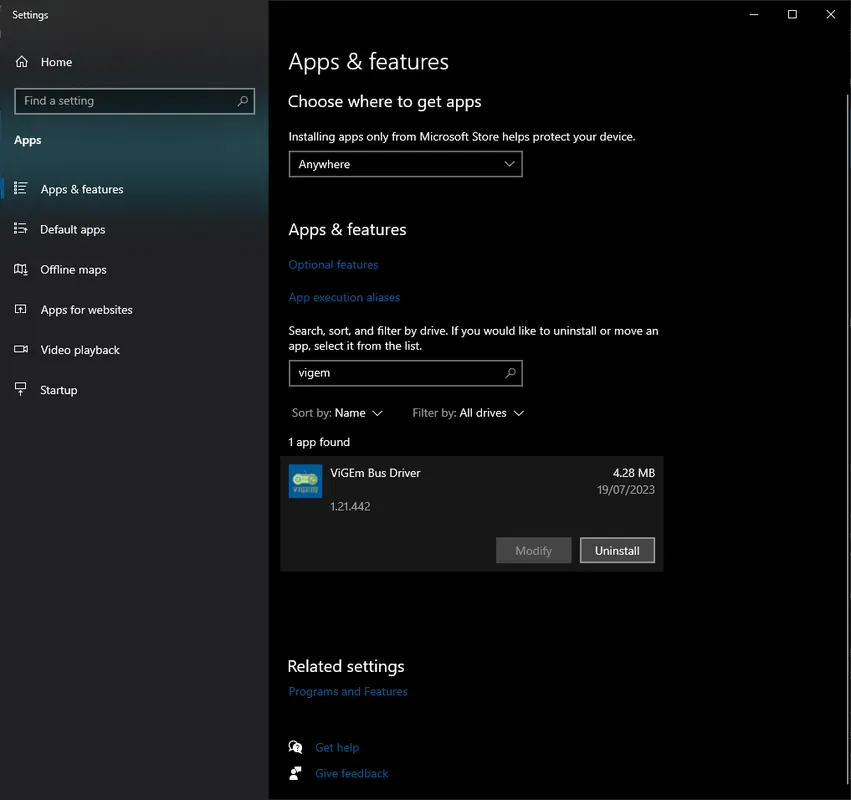
Windows 11 calls the page Installed apps; Windows 10 may call it Apps & features. The product can appear as Nefarius Virtual Gamepad Emulation Bus Driver. Searching for `Nefarius`, `Virtual Gamepad` or `Emulation` is more reliable than searching only for the short ViGEmBus name.
Some applications bundled their own copy of ViGEmBus. If the normal product entry is absent, the same official setup can sometimes offer a Remove option. Contact the distributor of a bundled copy when its installer controls repair and removal behavior.
- 1
Exit controller and streaming tools
Close visible windows and notification-area processes. Stop the application's own service if it runs one.
- 2
Open Windows Installed apps
Press Windows + I, choose Apps and open Installed apps or Apps & features.
- 3
Find the Nefarius bus entry
Search for Nefarius or Emulation and select Nefarius Virtual Gamepad Emulation Bus Driver.
- 4
Choose Uninstall
Approve the prompt and follow the built-in uninstaller. Do not cancel while it removes the driver package.
- 5
Restart the computer
Reboot when prompted, or restart manually before evaluating whether the bus is gone.
- 6
Check Device Manager
Use View → Devices by connection and confirm no unwanted Virtual Gamepad Emulation Bus entry remains.
Use the setup Remove option when the app entry is missing
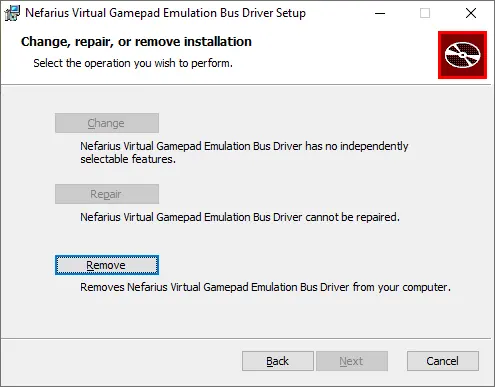
The official install/removal documentation describes a second path for systems where ViGEmBus does not appear in Apps & features. Run the matching official installer and choose Remove when the setup maintenance screen offers that action.
To uninstall ViGEmBus completely on a current Windows system, use the official 1.22.0 all-in-one EXE when the product entry is missing. Older screenshots show an MSI maintenance dialog, not a current package recommendation.
If running 1.22.0 immediately offers Install rather than Remove, the normal product may already be absent. Check Device Manager for a leftover bus device before proceeding. If you intend a clean reinstall, remove leftovers, reboot and then run Install.
Uninstall ViGEmBus completely when duplicates remain
Use this stage only when the normal uninstaller has completed and Device Manager still shows one or more Virtual Gamepad Emulation Bus entries. Restart first; Windows can keep an unloaded device visible until the next boot.
Open Device Manager, select View → Devices by connection and find each entry named Nefarius Virtual Gamepad Emulation Bus or Virtual Gamepad Emulation Bus. Right-click the leftover entry, choose Uninstall device and confirm. Restart Windows and check again.
Do not remove unrelated controller, USB, Bluetooth, HidHide or system bus entries. The exact device name matters. If a bundled application immediately recreates the bus, review that application's repair/startup behavior or uninstall the dependent application before repeating driver cleanup.
Clean persistent vigembus.inf packages as a last resort
The official troubleshooting guide uses Driver Store Explorer when normal uninstall and Device Manager cleanup leave persistent ViGEmBus packages. This is advanced maintenance because Driver Store Explorer can remove drivers used by other hardware.
Create a restore point, download Driver Store Explorer from its official project source, and sort entries by INF name. Select only entries named `vigembus.inf`. The Nefarius guide then uses Force Deletion and a reboot. After restart, check Driver Store Explorer and Device Manager again before reinstalling.
If you cannot confidently identify the exact ViGEmBus INF package, stop. Do not select similarly named controller, chipset, USB or virtual-machine drivers. A professional repair or Windows recovery path is safer than guessing in the Driver Store.
- 1
Complete normal removal first
Uninstall through Apps, reboot and remove only leftover ViGEmBus devices.
- 2
Create a restore point
Record a recovery point before changing Driver Store packages.
- 3
Identify vigembus.inf only
Sort by INF and select no unrelated entries.
- 4
Delete and restart
Follow the official guide's removal step, reboot and verify both Device Manager and the Driver Store.
What stops working after ViGEmBus removal?
After you uninstall ViGEmBus completely, client apps may still detect a physical controller but lose virtual output. DS4Windows can report that ViGEmBus is not installed, and games that rely on the emulated Xbox controller may stop receiving input.
HidHide is separate. It hides physical controllers to prevent double input; ViGEmBus creates virtual controllers. Removing the bus does not automatically remove HidHide, and removing HidHide is not required for a normal ViGEmBus uninstall. Evaluate each Nefarius product by its own role.
To restore virtual output, reinstall the official final ViGEmBus setup, reboot and confirm one healthy bus in Device Manager. If the controller app has migrated to a different backend, follow that application's current instructions rather than reinstalling a retired dependency unnecessarily.
| Component | Effect of removing ViGEmBus |
|---|---|
| Physical controller driver | Usually remains installed |
| Virtual Xbox 360/DS4 output | Stops for apps that depend on ViGEmBus |
| DS4Windows or BetterJoy app | May open but report missing virtual-bus support |
| HidHide | Separate product; not removed automatically |
| Games using native physical input | May continue working without virtual translation |
Verify after you uninstall ViGEmBus completely
After the final reboot, search Installed apps for Nefarius and Emulation. The ViGEmBus product entry should be absent. In Device Manager with Devices by connection selected, no unwanted Nefarius Virtual Gamepad Emulation Bus or Virtual Gamepad Emulation Bus entry should remain.
Open the controller application only if you want to confirm the dependency was removed. A missing-driver message is expected at that point and does not mean the uninstall failed. Close or reconfigure the app so it does not repeatedly attempt virtual output.
For a clean reinstall, use only the official v1.22.0 setup after the system is clean. Install, restart and verify one bus entry. Multiple entries immediately after reinstall suggest a third-party application or OEM package is adding another copy.
ViGEmBus uninstall FAQ
How do I uninstall ViGEmBus completely?
Uninstall ViGEmBus through Windows Settings first, reboot, and verify Device Manager. Use deeper cleanup only when duplicate driver entries remain.
Do I need a ViGEmBus uninstall tool?
Usually no. Use the built-in uninstaller first. Device Manager and Driver Store Explorer are only for leftover or duplicate packages after normal removal.
Will uninstalling ViGEmBus break my controller?
It normally does not remove the physical controller driver, but apps that create a virtual Xbox 360 or DualShock 4 controller can stop providing gamepad output.
Why does ViGEmBus come back after I remove it?
A controller or remote-input application may bundle and reinstall the dependency. Review that application's startup, repair or installation settings.
Should I also uninstall HidHide?
Not automatically. HidHide is a separate driver with a different purpose. Remove it only when you understand that dependency and no longer need it.
Can I reinstall ViGEmBus after removing it?
Yes. Use the final official 1.22.0 GitHub setup, reboot and verify one healthy bus entry.
Official sources used
Product and safety facts on this page are checked against first-party material. External sources open in a new tab.
- Official install and removal guide — Apps removal, setup Remove option, Device Manager and Driver Store cleanup
- ViGEmBus v1.22.0 release — verified repair/reinstall package
- Official end-of-life statement — uninstall context and retired updater guidance