
How to know ViGEmBus is installed
A setup file in Downloads does not prove the driver is installed. An Installed apps entry proves Windows knows about the product and its uninstaller, but it does not prove the device is healthy. A Device Manager entry proves the bus exists, but a warning icon can indicate that it failed to start. A controller-app test confirms the real workflow.
Use all three levels when diagnosing the common ‘ViGEmBus is not installed or running’ message: product registration, device health and client output. ViGEmBus is installed and ready only when the registered product leads to a healthy bus that the client can use. This avoids reinstalling a healthy driver when the actual problem is an application profile, a stale process or a competing controller tool.
The final setup version is 1.22.0, but the official release notes say the underlying driver version remained unchanged. Do not require Device Manager's Driver Version field to display 1.22.0. Source, publisher, product entry and health status are better combined evidence.
| Check | What it proves | What it does not prove |
|---|---|---|
| Installed apps | Normal product/uninstaller is registered | Device successfully started |
| Device Manager | Windows enumerated the virtual bus | Controller app is configured |
| General status | Bus reports healthy or provides an error | Every client can connect |
| Controller app output | End-to-end virtual gamepad works | Installer source was authentic |
Check ViGEmBus in Windows Installed apps
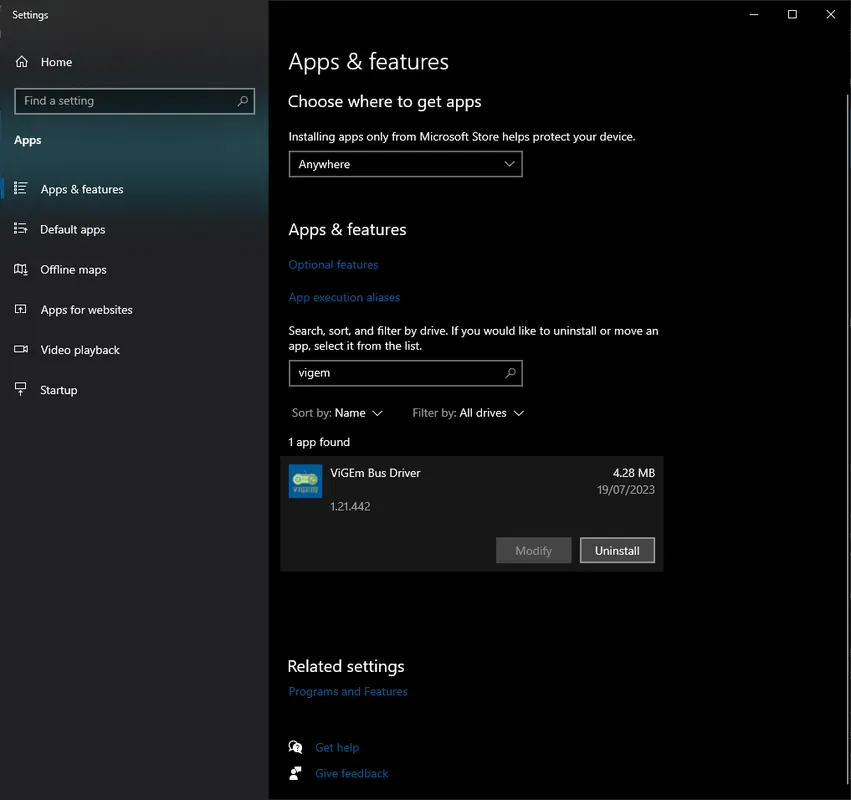
On Windows 11, open Settings → Apps → Installed apps. On Windows 10, open Settings → Apps → Apps & features. Search for `Nefarius`, `Virtual Gamepad` or `Emulation`. The normal product name is Nefarius Virtual Gamepad Emulation Bus Driver.
If the product appears, Windows has a registered setup entry that can normally repair or remove the driver. This is useful when you want to uninstall cleanly. Some applications bundle the bus, however, and their packaging can differ. An absent product entry does not conclusively prove the device is absent, so continue to Device Manager.
Review related controller and remote-input applications while you are in the app list. DS4Windows, BetterJoy, XOutput or a streaming tool often explains why the bus was installed. If no dependent application remains, you can decide whether to remove the retired driver.
Find ViGEmBus in Device Manager
The view mode matters because the bus can be difficult to spot in the default device grouping.
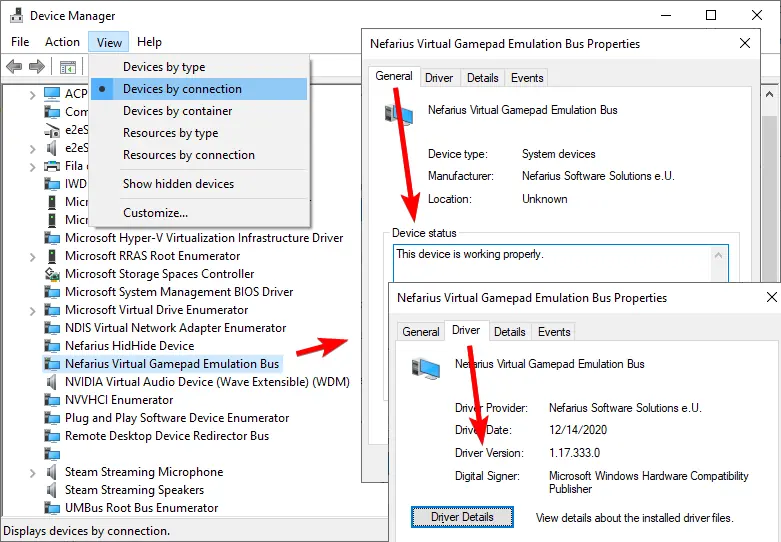
Press Windows + X and choose Device Manager. Select View at the top and choose Devices by connection. Look for Nefarius Virtual Gamepad Emulation Bus or Virtual Gamepad Emulation Bus. The Nefarius-prefixed name is the expected current publisher identity.
Open Properties and read the General tab. A working installation reports ‘This device is working properly.’ A yellow warning symbol or a Windows device error code means the driver is present but unhealthy; record the code before repairing the installation.
Open the Driver tab and review provider and digital signer information. It should be consistent with Nefarius Software Solutions. An old date or driver-file number can be normal because the final 1.22.0 setup did not change the underlying driver version. An unknown provider is a separate concern and should trigger source verification.
Interpret what Windows shows
One healthy Nefarius bus is the normal state. If ViGEmBus is installed and both the product entry and healthy device are present, reinstalling is unlikely to be the first useful action. Restart the affected controller application and check its output settings or logs.
No app entry and no device entry means ViGEmBus is not installed. Use the final official 1.22.0 GitHub setup if a trusted application requires it. An app entry without a device can indicate a failed or incomplete setup; use the official installer to repair or remove it, then reboot.
Multiple bus entries indicate old, OEM-modified or bundled copies. The official troubleshooting guide warns that duplicates can cause conflicts. Uninstall normally, reboot, remove remaining ViGEmBus devices and reinstall only after the old entries are gone.
HP Omen systems are a known special case because some models shipped with a modified old ViGEmBus fork. If an application detects the wrong bus even after a normal install, use the Nefarius HP Omen-specific troubleshooting guidance.
| Installed apps | Device Manager | Conclusion |
|---|---|---|
| Present | One healthy bus | Installed and running; troubleshoot the client app if needed |
| Present | Missing or warning | Installed product is incomplete or device failed |
| Absent | Absent | Not installed |
| Absent | Bus present | Bundled, orphaned or nonstandard installation |
| Any | Multiple buses | Conflict risk; clean old copies |
Confirm ViGEmBus is installed with an app test
Restart Windows after any driver installation or removal, then open only the application that requires ViGEmBus. When ViGEmBus is installed correctly, a virtual-output profile can create an Xbox 360 or DualShock 4 device that the application and game can use.
If Windows shows one healthy bus but the app still reports it missing, close all instances of the app, including its notification-area process or service. Start it again after Device Manager is ready. Review current app documentation because maintained software can change its virtual-controller backend over time.
Do not use a random web-based gamepad tester as the only proof. It can confirm that a browser sees some controller, but it may not distinguish the physical device from the ViGEm virtual device. Use the controller application's output status and Windows device list together.
- Restart after driver changes
- Run one controller mapper at a time
- Use a profile that enables virtual output
- Distinguish the physical controller from the virtual controller
- Check the app's current logs and documentation if the healthy bus is not used
What to do when ViGEmBus is missing or broken
When both Windows checks are empty, download `ViGEmBus_1.22.0_x64_x86_arm64.exe` from the official `nefarius/ViGEmBus` v1.22.0 release. Close dependent applications, run setup with administrator approval and restart Windows. The installer contains x86, x64 and ARM64 builds.
When a device warning or duplicate appears, do not stack repeated installs. Uninstall Nefarius Virtual Gamepad Emulation Bus Driver through Installed apps, reboot and remove leftover bus devices in Device Manager. Then reinstall one clean final copy.
Avoid loose SYS/INF downloads, generic driver updater products and instructions that disable signature enforcement. The original package is production signed, and a source mismatch is not solved by weakening Windows verification.
Check ViGEmBus installation FAQ
Where does ViGEmBus appear in Device Manager?
Use View → Devices by connection and look for Nefarius Virtual Gamepad Emulation Bus. Open Properties to read its status.
What should ViGEmBus be called in Installed apps?
The normal entry is Nefarius Virtual Gamepad Emulation Bus Driver. Searching for Nefarius or Emulation can find it.
Why does Device Manager not show version 1.22.0?
The 1.22.0 release notes say the underlying driver version remained unchanged. The setup release tag and driver-file version are different identifiers.
Is ViGEmBus running as a Windows service?
It is a device driver, so Device Manager and device status are the primary checks rather than looking for a normal desktop service entry.
How do I know ViGEmBus is installed correctly?
ViGEmBus is installed correctly when Windows shows the registered product, Device Manager reports one healthy bus and the controller application can create virtual output.
What if ViGEmBus is installed but DS4Windows cannot find it?
Restart Windows and DS4Windows, confirm one healthy bus, then check the DS4Windows profile, output settings and current documentation.
Are two ViGEmBus entries normal?
No. Multiple bus entries can indicate old or bundled copies and may cause conflicts. Use a clean uninstall before reinstalling.
Official sources used
Product and safety facts on this page are checked against first-party material. External sources open in a new tab.
- Official install and health-check guide — Installed apps, Device Manager and status verification
- Official ViGEmBus README — supported systems and installation source
- Final v1.22.0 release — setup version and unchanged driver-version note